Nominase Google Slide Template – A Versatile Design System for Modern Presenters
When you're building a presentation, the last thing you want is to start from a blank canvas. Whether you're pitching to investors, teaching a class, or sharing a quarterly report, the visual foundation of your slides can make or break how your message lands. That's where the Nominase Google Slide Template enters the picture. It's not just a set of slides — it's a full design system built to save you time, maintain consistency, and elevate the look of your content across any context.
What Makes Nominase Different
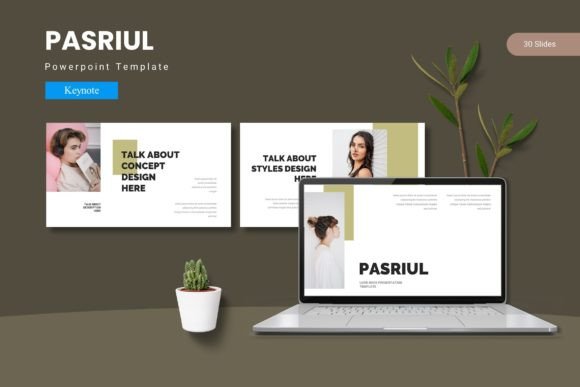
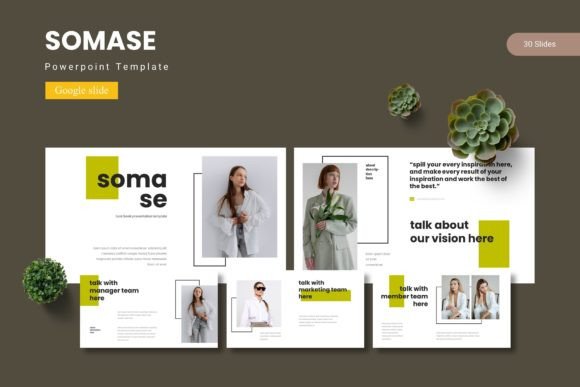
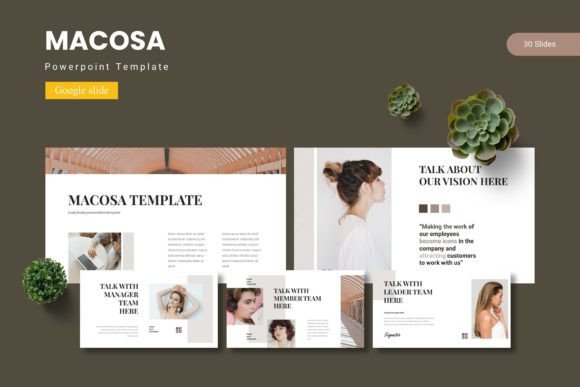
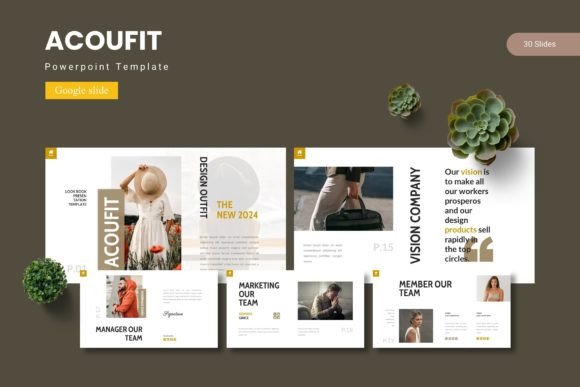
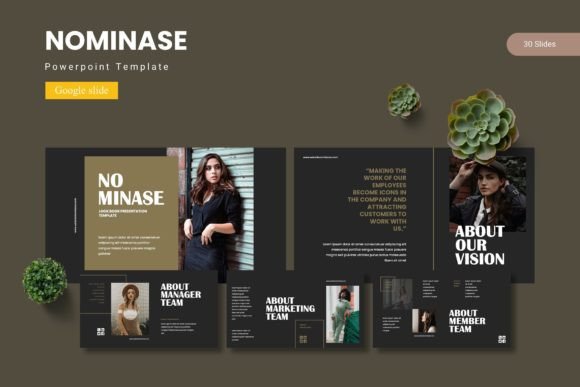
At first glance, many Google Slide templates offer a handful of layouts and call it done. The Nominase Google Slide Template takes a more comprehensive approach. With 150 total slides spread across five premade color schemes, you get 30 slides per variation. That means you have enough runway to build anything from a short internal update to a full-length keynote or course module without repeating the same layout twice.
The template includes section break slides, which are often the unsung heroes of a well-paced presentation. These allow your audience to mentally reset and signal a shift in topic — a small touch that has a surprisingly big impact on clarity and retention.
One of the standout characteristics is the handcrafted infographic set. Instead of generic charts or basic shapes, you get pixel-perfect illustrations that are fully resizable and editable. You can tweak colors, move elements, and customize data visuals without worrying about losing resolution or alignment. This is possible because everything is built on master slides — so changes you make propagate consistently, and you won't accidentally break the layout.
Another notable quality is the inclusion of picture placeholders with drag-and-drop functionality. Instead of cropping and resizing every image manually, you simply drop your photo into the placeholder, and it adapts automatically. Small conveniences like this add up, especially when you're building presentations under a deadline.
The gallery and portfolio slide options are another highlight. If your work involves showcasing projects, client work, or team profiles, these dedicated layouts help you present visual content cleanly without overcrowding the slide.
Practical Applications Across Different Fields
For marketers and entrepreneurs, time is often the scarcest resource. The Nominase Google Slide Template lets you produce client-facing decks that look polished without needing a designer on retainer. Imagine you're preparing a campaign proposal. You can pull from the 30-slide deck in your brand's color, drop in your campaign visuals, adjust the infographics to display projected metrics, and have a professional deck ready in under an hour. The five color variations also make it easy to switch things up for different clients or campaigns without starting from scratch.
Educators and trainers will find value in the structured flow. Section breaks, clean text layouts, and infographics help break down complex topics. Whether you're explaining a process, comparing data, or walking through a case study, the template supports clear visual hierarchy. Students and participants tend to follow along better when slides are organized and visually consistent.
Freelancers and creators often wear many hats — you're the strategist, the writer, the designer, and the presenter. A template like this removes one of those hats. You can focus on crafting your message while the visual framework handles the rest. The portfolio layouts are especially useful if you need to present your work to potential clients or collaborators.
Business owners and team leads can use the Nominase Google Slide Template for internal communications as well. Quarterly reviews, project updates, and strategy sessions benefit from slides that look intentional. Even if you're presenting to a small team, the visual consistency reinforces professionalism and attention to detail.
Bloggers and publishers who produce digital content can repurpose slide decks into social media posts, lead magnets, or course materials. Since the template works within Google Slides, you can export presentations as images or PDFs and integrate them into your content workflow without needing additional software.
Benefits Beyond Aesthetics
A well-designed template doesn't just make your slides look good — it changes how your audience perceives you. When your presentation is visually consistent, your message appears more credible. When infographics are clear and easy to read, your data feels more trustworthy. When section breaks are placed thoughtfully, your narrative feels more structured.
The efficiency gain is real. With 150 slides already laid out, you're not spending time on layout decisions. You're filling in your content, adjusting as needed, and moving on. This matters especially when you're preparing multiple presentations in a short period — say, for a conference, a product launch, or a training series.
Branding also becomes easier. Because the template uses master slides and consistent color schemes, you can apply your brand colors across the deck quickly. Even if you're not a designer, you can maintain a cohesive look across all your materials.
Practical Considerations When Using Nominase
The main file includes 5 PPTX items and a Google Slides folder with 30 slides per color scheme. Everything is clearly labeled, and there's a Readme First file to guide you through fonts and photo information. Before you start, make sure you have the recommended fonts installed or available within Google Slides, as this will ensure the template renders as intended.
Since the template is built on master slides, take advantage of that structure. If you need to change a recurring element — like a logo placement or a color accent — edit the master slide, and the change will apply across all related layouts. This saves an enormous amount of time compared to editing each slide individually.
The five color variations give you flexibility, but I'd recommend picking one as your primary and only switching if the context calls for it. Consistency across your presentations builds recognition, especially if you're creating decks regularly for the same audience.
The picture placeholders are convenient, but use high-resolution images to get the best result. Since the placeholders are designed to fit specific aspect ratios, cropping happens automatically, so you want your source images to be well-framed.
Final Observations
The Nominase Google Slide Template stands out because it treats presentation design as a system rather than a collection of slides. The combination of slide quantity, color variety, infographic quality, and master slide structure makes it suitable for a wide range of use cases. Whether you're a solo freelancer putting together a client deck or a marketing team producing monthly reports, the template reduces friction and lets you focus on content.
If you've been relying on the same basic Google Slides theme or building decks from scratch each time, the Nominase Google Slide Template offers a practical upgrade. It's designed for people who need to present well — without becoming a full-time designer to do it.