Turosa Google Slide Template: A Versatile Presentation Toolkit for Professionals
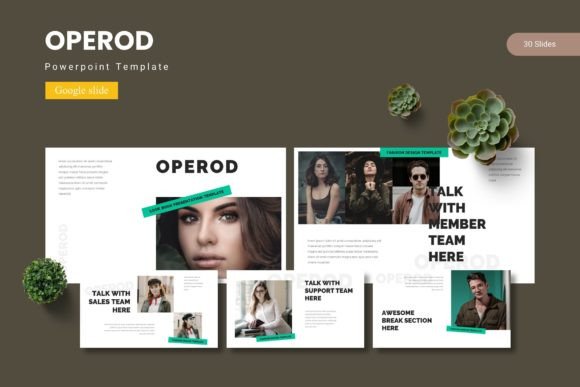
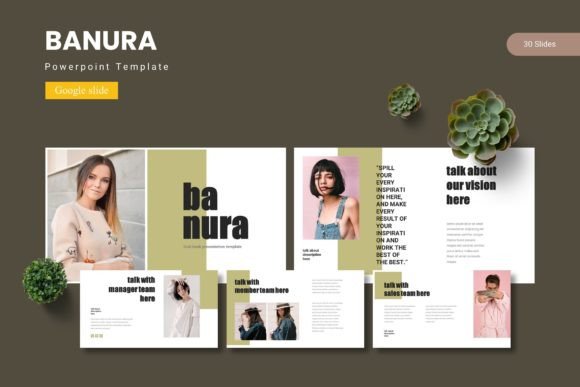
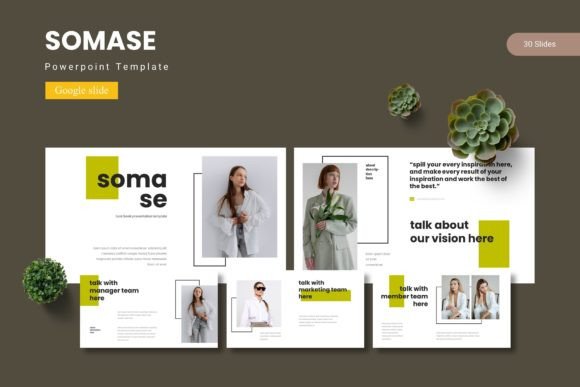
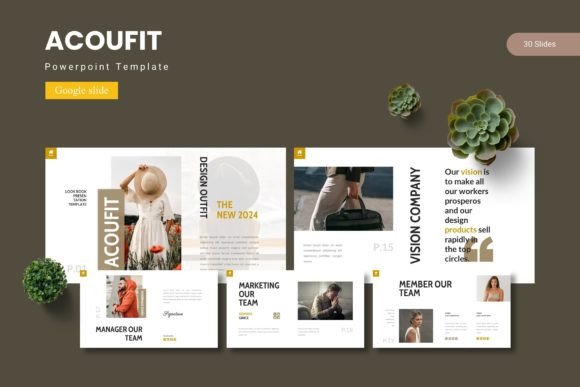
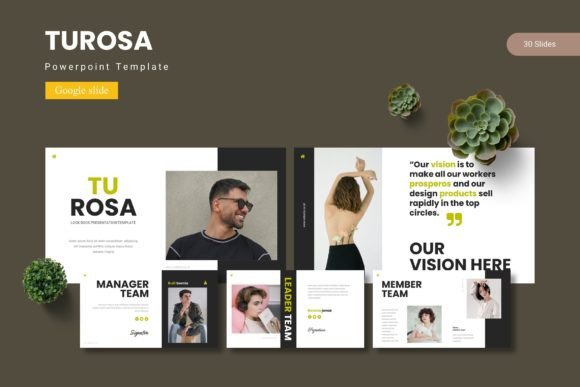
Presentations remain one of the most effective ways to communicate ideas, pitch projects, and share data. But building a presentation from scratch takes time, and inconsistent design can distract from your message. That is where presentation templates offer genuine value. The Turosa Google Slide Template is one such resource that aims to balance visual appeal with practical usability. Rather than offering a single look, it provides five complete color variations and 150 slides, giving you room to tailor the design to your specific context.
What Makes the Turosa Template Worth Considering
The Turosa package is built around a simple premise: you should not have to start from zero every time you need a professional presentation. It includes 150 total slides, organized into five premade color schemes with 30 slides per template. This structure means you can choose a palette that fits your brand or topic without spending time adjusting colors manually. The inclusion of section break slides, infographics, and portfolio layouts suggests the template was designed with a range of presentation types in mind, not just one narrow use case.
What stands out is the emphasis on master slides. Master slides allow you to make global changes to fonts, colors, or backgrounds across the entire presentation in a few clicks. This is a significant time saver, especially if you are preparing a deck that needs to stay consistent across multiple sections or contributors. The handcrafted infographics and pixel-perfect illustrations also indicate attention to detail, which matters when you are presenting to clients, stakeholders, or potential investors.
Key Features That Support Real-World Use
When evaluating any template, it helps to look beyond the number of slides and focus on how the features translate into actual workflow improvements. Here are the primary elements of the Turosa template and what they mean in practice:
- 150 total slides across 5 colors – You get 30 slides per color variation. This gives you enough content blocks to build a comprehensive presentation without running out of layout options for different sections.
- Section break slides – These are dedicated slides that separate major sections of your presentation. They help your audience follow along and give you natural transition points during your talk.
- Handcrafted infographics – Pre-built infographic elements let you present data and processes visually. They are editable, so you can adjust them to match your specific numbers or workflows.
- Master slide based – Changes made to the master slide apply across the entire deck. This ensures consistency and reduces manual formatting work.
- Picture placeholders with drag-and-drop – You can insert images by dragging them into placeholders. This keeps your layout intact and avoids misaligned images.
- 5 PPTX and Google Slides files – The template comes in both PowerPoint and Google Slides formats, so you are not locked into one ecosystem.
These features point to a template that prioritizes efficiency. The drag-and-drop image placeholders alone can save several minutes per slide compared to manually resizing and positioning images. The inclusion of both file formats also means you can work in Google Slides for collaboration and export to PowerPoint for final delivery if needed.
Practical Strengths for Different Presentation Scenarios
The value of any template becomes clear only when you put it to use in real projects. The Turosa template performs well in several common scenarios:
Client Pitches and Business Proposals
When pitching to a client, your presentation needs to look polished without appearing generic. The five color options allow you to choose a scheme that aligns with your brand or the client's industry. The section break slides give you natural points to move from problem statement to solution to pricing, which keeps your narrative clear. The infographics are useful for presenting market data or timeline projections in a digestible format.
Internal Team Updates and Reporting
For weekly updates or quarterly reviews, you need a format that is clean and repeatable. The master slide structure means you can set your team's fonts and colors once, and every new slide you add will follow that style. This consistency is especially helpful when multiple team members contribute slides to the same deck. The portfolio and gallery slides also work well for showcasing project results or case studies.
Educational and Workshop Content
Educators and trainers often need to present information in a structured way. The 30 slides per color variation provide enough layouts to cover learning objectives, key points, examples, activities, and summaries. The picture placeholders make it easy to add relevant images or diagrams without disrupting the layout. The clean, professional design also helps maintain audience focus on the content rather than the slide design itself.
Creative Portfolios and Personal Branding
Freelancers and creators can use the portfolio and gallery slide layouts to showcase their work. The pixel-perfect illustrations and resizable graphics give you flexibility to adjust the visual tone. The five color variations let you match the presentation to your personal brand without needing design skills. This can be particularly useful for job applications, freelance proposals, or speaking engagements.
Usability and Learning Curve
One of the stronger points of the Turosa template is its usability. Because it is based on Google Slides and PowerPoint, you do not need to learn new software. The file structure is straightforward: the folder contains separate files for each color scheme, along with a ReadMe first document and font information. This reduces the chance of missing assets or using the wrong fonts.
The template relies on master slides, which means you can make global adjustments quickly. If you decide to change the accent color or swap the font family, you do it once and all slides update automatically. This is a practical advantage over templates that require you to edit each slide individually.
Picture placeholders are another usability highlight. Instead of manually cropping and positioning images, you drop them into the designated placeholder. The placeholder maintains the aspect ratio and alignment, so your images stay consistent throughout the deck. This is particularly helpful if you are not comfortable with advanced image editing.
That said, some users may need a few minutes to understand how master slides work if they have not used them before. The ReadMe file provides basic guidance, but users unfamiliar with slide masters may benefit from a quick tutorial. This is a minor learning curve and does not detract from the overall usability.
Quality and Consistency Considerations
The quality of a presentation template can be judged by how well its elements hold together when you edit them. In the case of Turosa, the handcrafted infographics and pixel-perfect illustrations suggest attention to detail. All graphics are resizable and editable, which means you can scale them without losing clarity. This is important if you need to zoom in on a specific infographic during a presentation or print slides for handouts.
Consistency is built into the template through the master slide system and the five color schemes. Each color variation includes 30 slides, so you get the same layout options regardless of which palette you choose. This makes it easier to switch between color schemes if your initial choice does not fit the final context.
The template includes 5 PPTX files and 5 Google Slides files, which gives you flexibility in workflow. You can start in Google Slides for collaborative editing, then export to PowerPoint for final formatting or offline delivery. The font information is provided, so you can install the recommended fonts or substitute them without breaking the layout.
Potential Limitations to Consider
No template is perfect for every situation, and the Turosa template has a few considerations worth noting. First, while 150 slides sounds like a lot, they are distributed across five color schemes. You effectively get 30 unique slide layouts per color. That is enough for most standard presentations, but if you need a very large deck with highly varied layouts, you may find yourself reusing some slide types.
Second, the template is designed primarily for a professional and clean aesthetic. If your presentation calls for a highly creative, experimental, or unconventional visual style, you may find the template too structured. The designs are polished and business-friendly, but they are not meant to push visual boundaries.
Third, the template relies on the fonts and images you provide. The font information is supplied, but you need to ensure you have the rights to use any fonts or images you incorporate. The template itself includes illustrations and graphics, but the picture placeholders require your own image assets.
Finally, users who are entirely new to Google Slides or PowerPoint may need a short familiarization period with master slides and placeholders. The ReadMe file helps, but it is not a detailed tutorial. A quick online search or internal team demo can resolve this quickly.
Who Benefits Most from This Template
The Turosa Google Slide Template is best suited for professionals who need to create presentations regularly and want to reduce design time without sacrificing quality. This includes business consultants, marketers, project managers, HR professionals, and startup founders who pitch to investors or clients. The template is also a strong fit for educators who create course materials and for freelancers who want to present portfolios or proposals in a polished format.
If you value consistency, efficiency, and professional aesthetics, the template will serve you well. It is less ideal if you need a highly specialized or avant-garde design language, or if you prefer to build every slide from scratch for maximum creative control.
Final Thoughts on Practical Value
The Turosa Google Slide Template delivers what it promises: a structured, visually consistent, and time-saving foundation for common presentation types. The five color variations give you flexibility, the master slide system ensures consistency, and the drag-and-drop placeholders simplify image handling. The handcrafted infographics and pixel-perfect illustrations add a layer of polish that would take significant time to create from scratch.
For professionals who present regularly, this template can reduce prep time and improve the visual quality of your decks. It works best when you need a reliable, professional look that can be adapted to different topics or audiences with minimal effort. The combination of Google Slides and PowerPoint support also makes it a practical choice for teams that collaborate across different platforms.
If you are looking for a presentation template that balances depth with usability, the Turosa template is worth evaluating. It does not try to be everything to everyone, but it does the things it sets out to do with solid execution and practical features.